Minor quality of life tip: “Set as Main Scene.” #
I change the main scene all the time. It’s super useful when developing a feature.
“Run Current Scene” (F6) is okay when testing quick changes but inevitably I need to make changes to a different scene and then I have to switch scenes in the editor before running it. Or I forget to use F6 instead of F5.
Changing the main scene was a pain, at least the way I did it. Usually I’d use Godot’s File System panel: type a few characters into the filter, find the scene I want, then copy its path (Ctrl + Shift + C). Now open the Project Settings window and switch to the “Run” section. Set the Main Scene and close the window.
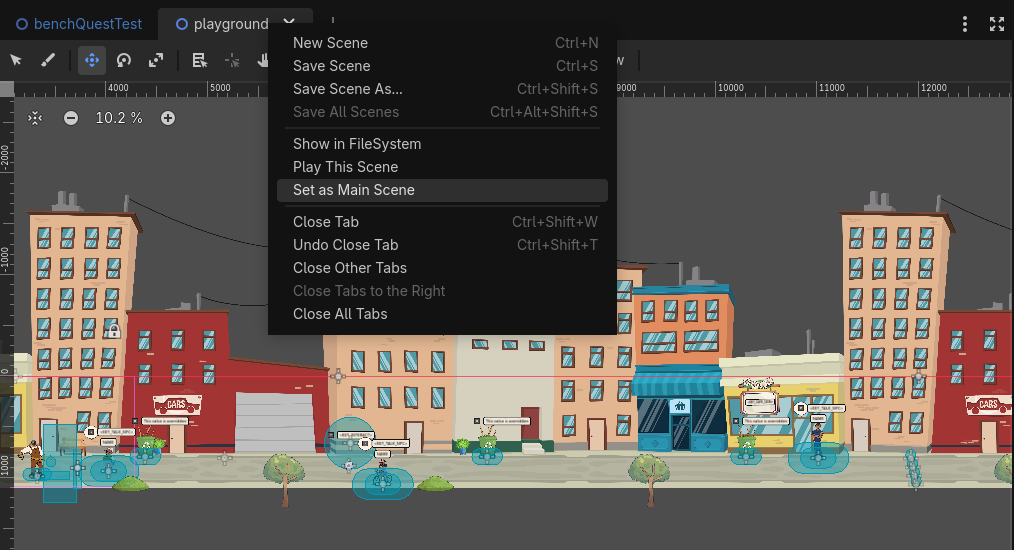
Well, there’s a much easier way. Open a scene (Ctrl + Shift + O) and right click the scene’s tab. Boom. “Set as Main Scene.” Done.
I was considering writing a little command line script to manage this but happy to see there’s already something very usable in the editor UI.
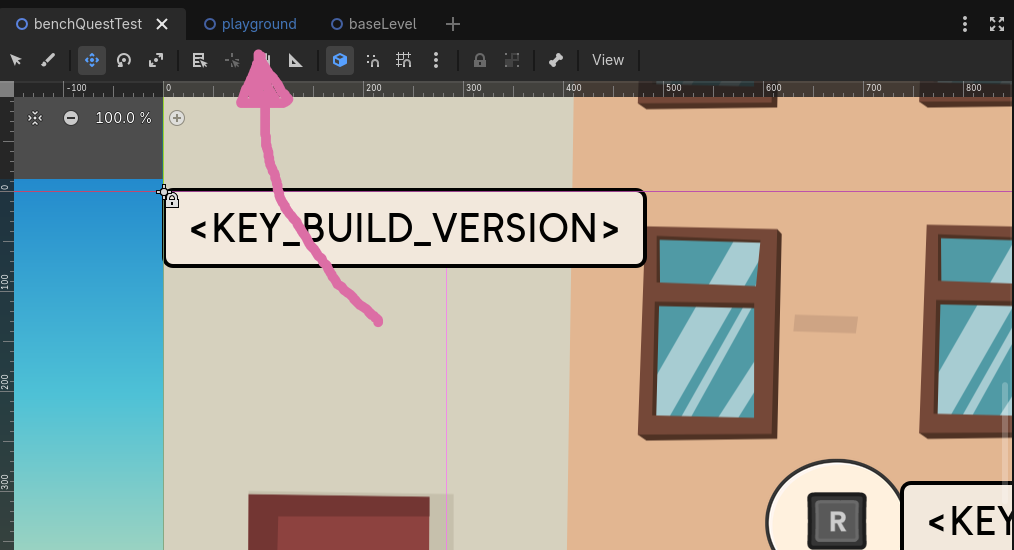
Also, it looks like the current main scene has its name displayed in blue on the tab, even when it’s not selected. Nice touch.